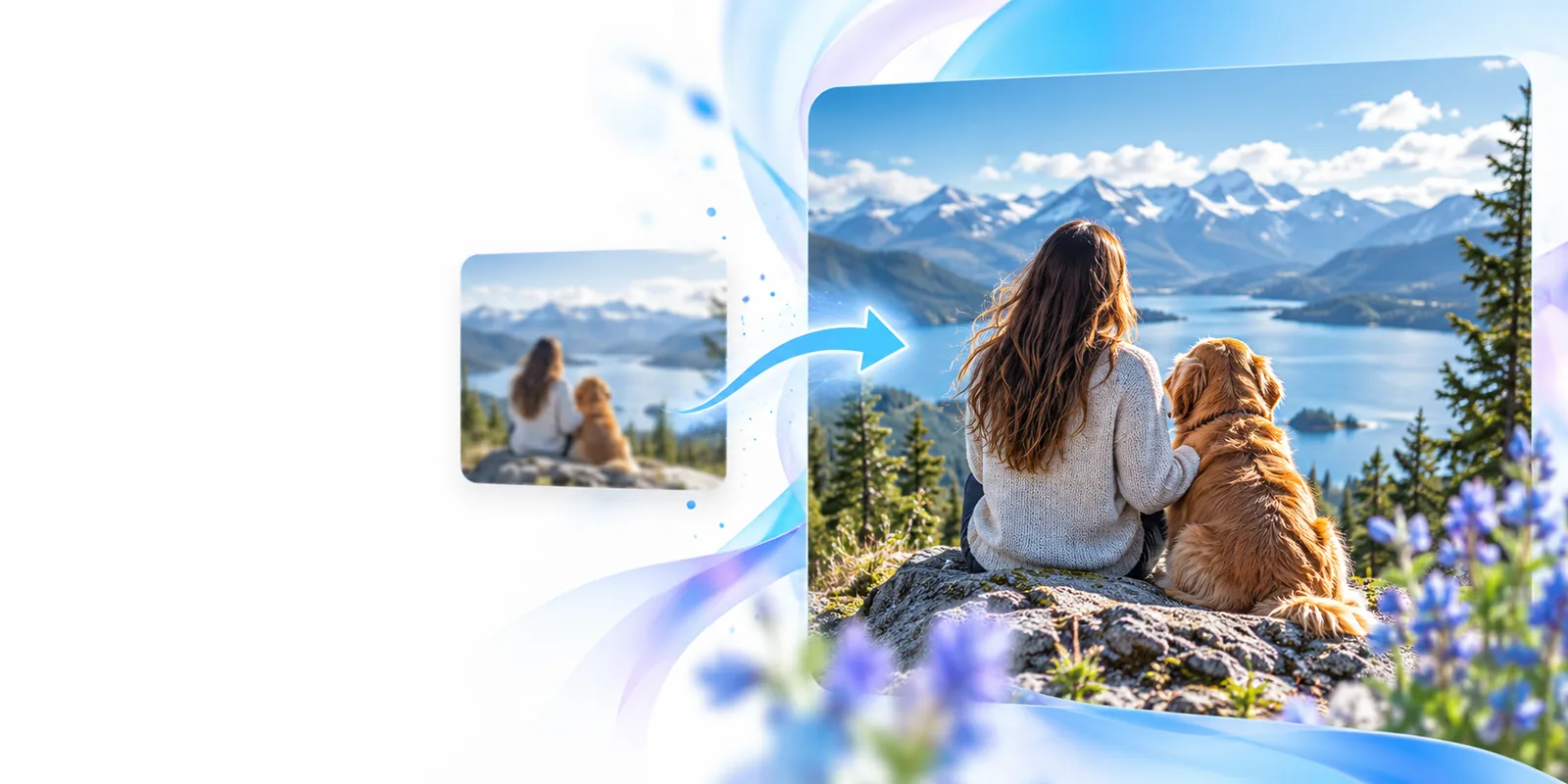
Workflow comparison

Is upscayl the right way to enlarge your images?

upscayl is a desktop image upscaler, not a browser upload page. Its local approach can suit private or repeat work, but it requires installation and compatible hardware. Compare the workflows before choosing where to process your image.

Imageupscaler landing-page image

This entry point vs the general one

The main difference is where processing begins. Neither route can restore detail that was never visible in the source.

UpScayl desktop app

1

Choose it when local processing and repeat use matter more than avoiding setup.

  • Runs on your own computer after installation.
  • Can work without an internet connection once the app and needed models are available.
  • Offers a desktop workflow for enlarging multiple images.
  • Requires compatible graphics hardware and an installation.
  • Uses your computer's resources while processing.

General online image upscaler

2

Consider it when you would rather start in a browser than install an app.

  • No desktop application to maintain.
  • Convenient when working across different computers.
  • Image handling and limits depend on the particular service.
  • Uploading a sensitive image requires checking that service's privacy terms.

The 3 things only it does

Relative to a browser entry point, this desktop route keeps processing on your computer, supports offline work after setup, and gives you an open-source application to inspect. For other approaches, compare these related pages.

How to start

Before installing a desktop image upscaler, check your graphics hardware, choose a representative source image, and decide how you will judge the result at its intended display size.

No guaranteed hardware match

The desktop route depends on graphics support. A computer that cannot run the required processing backend may fail before an image is enlarged.

Workaround

Check the app's current system requirements against your device before installing it.

No recovery of missing facts

An image upscaler may infer plausible texture, but it cannot verify a blurred number, unreadable sign, or obscured face.

Workaround

Find a higher-quality original when factual accuracy matters.

No automatic print approval

A larger pixel count alone does not ensure a sharp print. Source quality, viewing distance, and physical dimensions still matter.

Workaround

Inspect a crop at print size and request a proof for important work.

Limits

These differences describe the routes, not a promise that every online service or desktop setup will behave identically.

UpScayl desktop app
Online image upscaler

Starting point

UpScayl desktop app

Install and open a desktop application

Online image upscaler

Open a service in a browser

Processing location

UpScayl desktop app

On your computer

Online image upscaler

Depends on the service

Offline use

UpScayl desktop app

Possible after the app and required models are available

Online image upscaler

Generally requires a connection

Hardware burden

UpScayl desktop app

Your device must support the app's processing requirements

Online image upscaler

Depends on how the service processes images

Image transfer

UpScayl desktop app

Local processing does not require uploading the source

Online image upscaler

Check whether the service requires an upload

Quality ceiling

UpScayl desktop app

Constrained by source detail and the chosen model

Online image upscaler

Constrained by source detail and the service's method

Choose the workflow that fits

Choose this when

You regularly enlarge personal images and have compatible hardware.

Consider the UpScayl desktop workflow.

Local processing can avoid sending source files to a remote service, though you still need to review the output.

Choose this when

You need to work from a computer where you cannot install software.

Consider a browser-based image upscaler.

It removes the desktop installation step; check its file-handling terms and available controls first.

Choose this when

The image contains text or details that must be accurate.

Seek a better source image before enlarging either version.

Generated-looking sharpness is not evidence that inferred details are correct.

Start with the image you have

Explore an image workflow

Choose a clear source, keep the original, and compare any enlarged result at the size where you will actually use it. Imageupscaler can help you explore another route without assuming that a larger file is automatically a better image.

Explore image tools
  • Keep your original file.
  • Inspect fine detail before using the result.
  • Check privacy terms before uploading sensitive images.

Its own FAQ

UpScayl is an open-source desktop application for enlarging images with AI-based processing. Unlike a browser upload page, it runs the processing on a compatible computer.

The desktop app can process images offline once it and the required models are available locally. Downloading or updating the app or models may still require an internet connection.

It relies on compatible graphics processing rather than working equally on every computer. Check its current hardware requirements for your operating system and device before installing it.

Enlargement can make an image look sharper, but it cannot establish what an unreadable or missing detail originally showed. Compare the result with the source, especially for faces, text, and other details that must be faithful.

Start creating
Start creating