Examples and evaluation

How to Judge image upscaler examples free of Guesswork

A larger image is not necessarily a better one. Use these examples as visual references, then test your own file at the size you need. Compare edges, textures, text, and faces against the original before deciding whether the result is usable.

Check available options at the destination
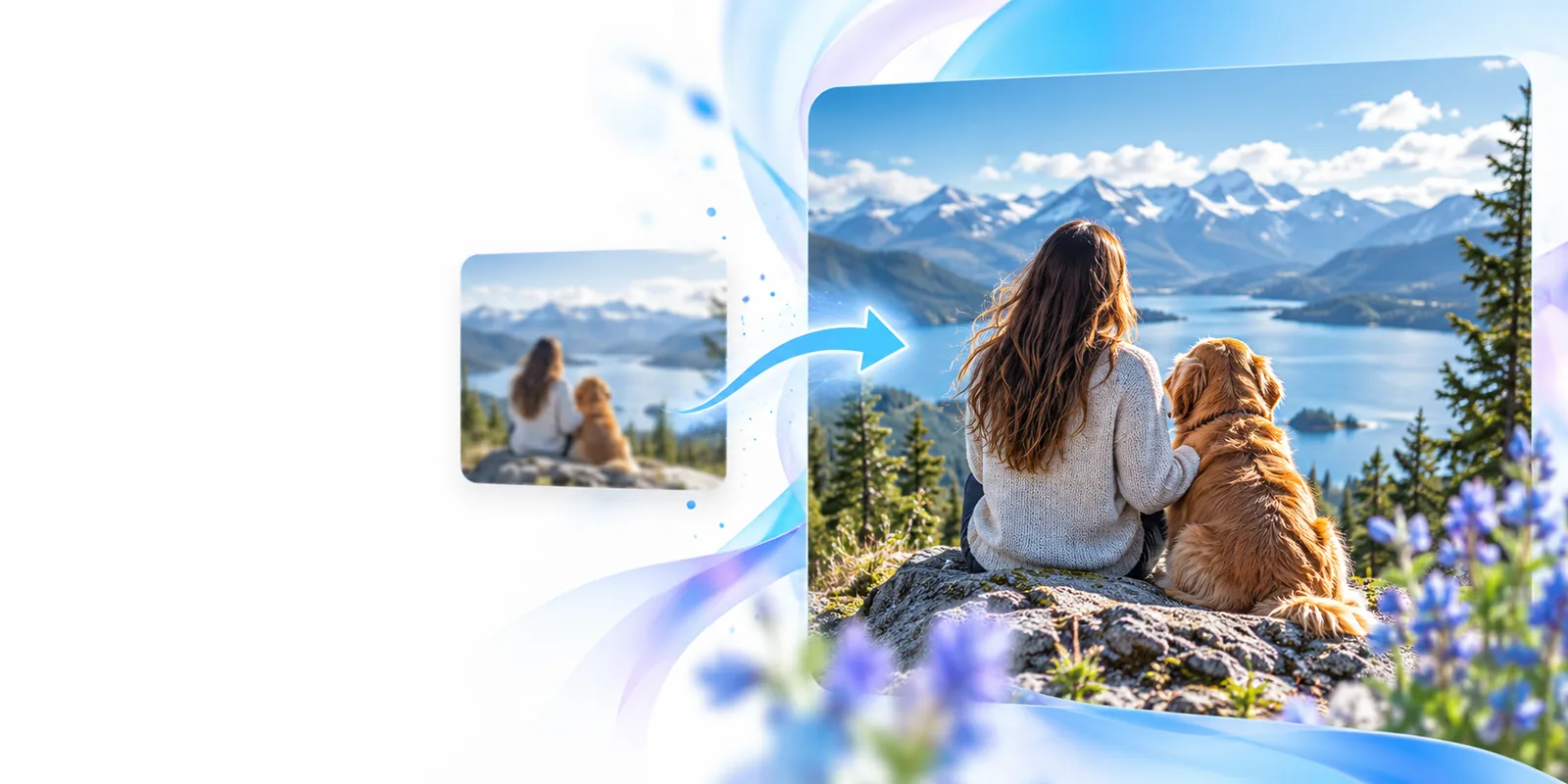
Imageupscaler landing visual

the scenario's pain

The useful question is not whether an enlarged image looks sharp in a thumbnail. It is whether it holds up in the place you plan to use it.

Portrait editor

A small portrait needs to fit a larger layout. Eyes, hair, and skin can look convincing at first glance while gaining artificial detail that changes the person’s appearance.

Compare the same crop at its intended display size. Keep the original nearby, reject changed facial features, and use a less aggressive result if the face no longer looks faithful.

image upscaler face
Print designer

An illustration looks adequate on a phone but soft when placed in a print layout. Enlarging its pixel dimensions alone does not establish that it will print cleanly.

Set the intended physical dimensions first, inspect outlines and small text, and make a test print before approving the image for production.

upscale image to 4k

Photo archivist

An older compressed photo has blocky shadows and indistinct background detail. Strong sharpening may turn those defects into more prominent edges.

Save the untouched source, compare multiple crops, and choose a result that improves viewing without presenting reconstructed details as historical fact.

What is the best way to upscale images?

3 concrete workflows

Start with an untouched source and decide where the result will appear. Then enlarge, inspect at the final display size, and keep or reject the output based on visible defects—not its pixel count alone.

example output

These site images are visual examples, not verified before-and-after measurements. No source files, settings, or production prompts are supplied for them, so use the captions as checks to perform on your own image.

  • Imageupscaler example image one Photo check
    1
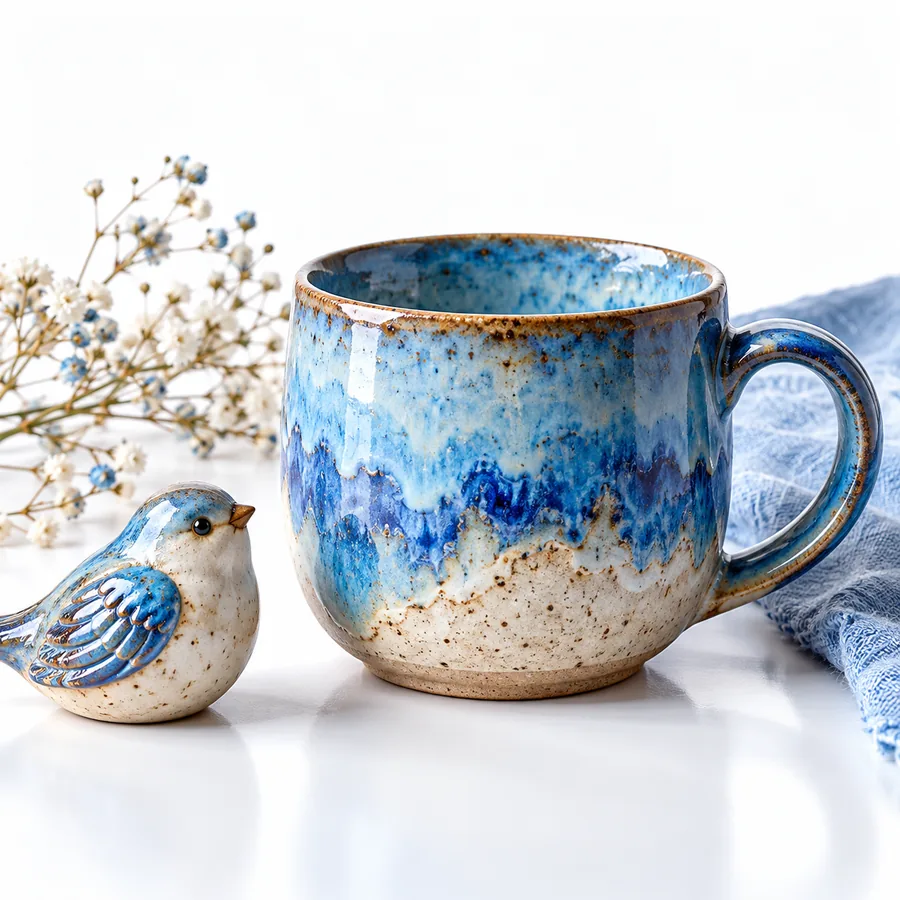
    Input to test: a low-resolution photograph. Compare a face or other recognizable subject with the untouched original, especially around eyes, hair, and boundaries. A crisp-looking edge is not an improvement if its shape has changed.
  • Imageupscaler example image two Artwork check
    2
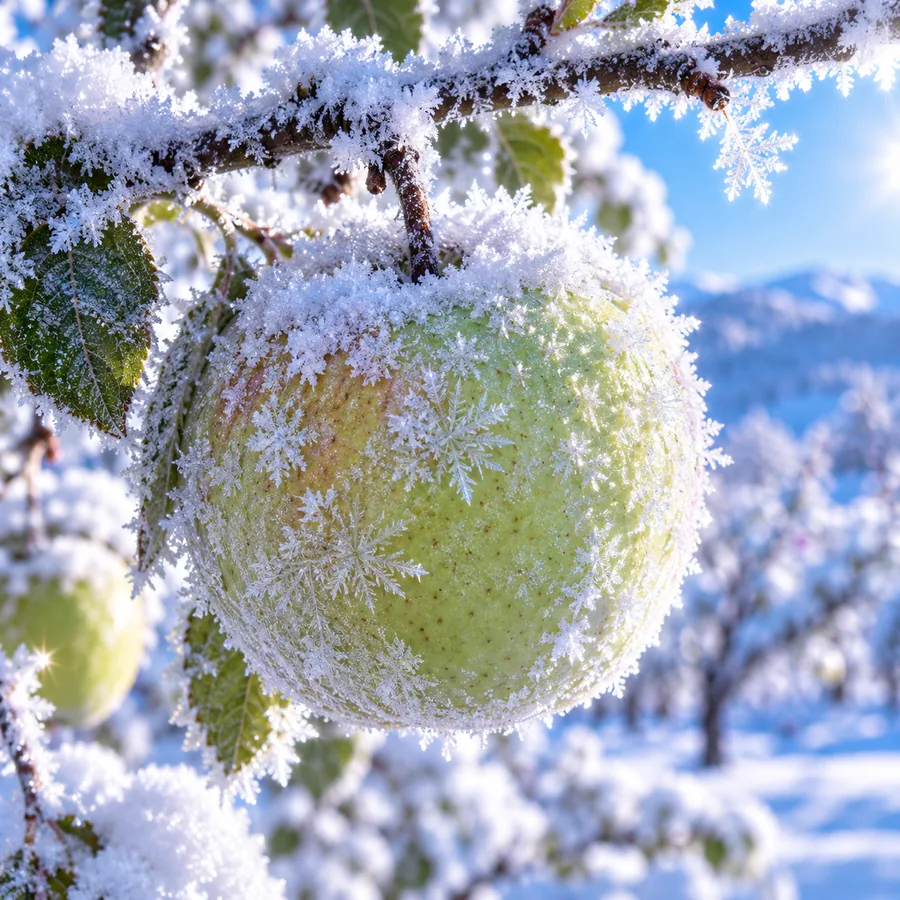
    Input to test: a small illustration. Inspect thin lines, repeated patterns, and flat-color areas at the size the image will actually be displayed. Watch for halos, broken contours, or texture that was not part of the artwork.
  • Imageupscaler example image three Listing check
    3
    Input to test: a compressed product image. Check the item’s outline, material texture, and any lettering against the source. Do not let an attractive background distract from an inaccurate product edge or altered label.
  • Imageupscaler example image four Banner check
    4
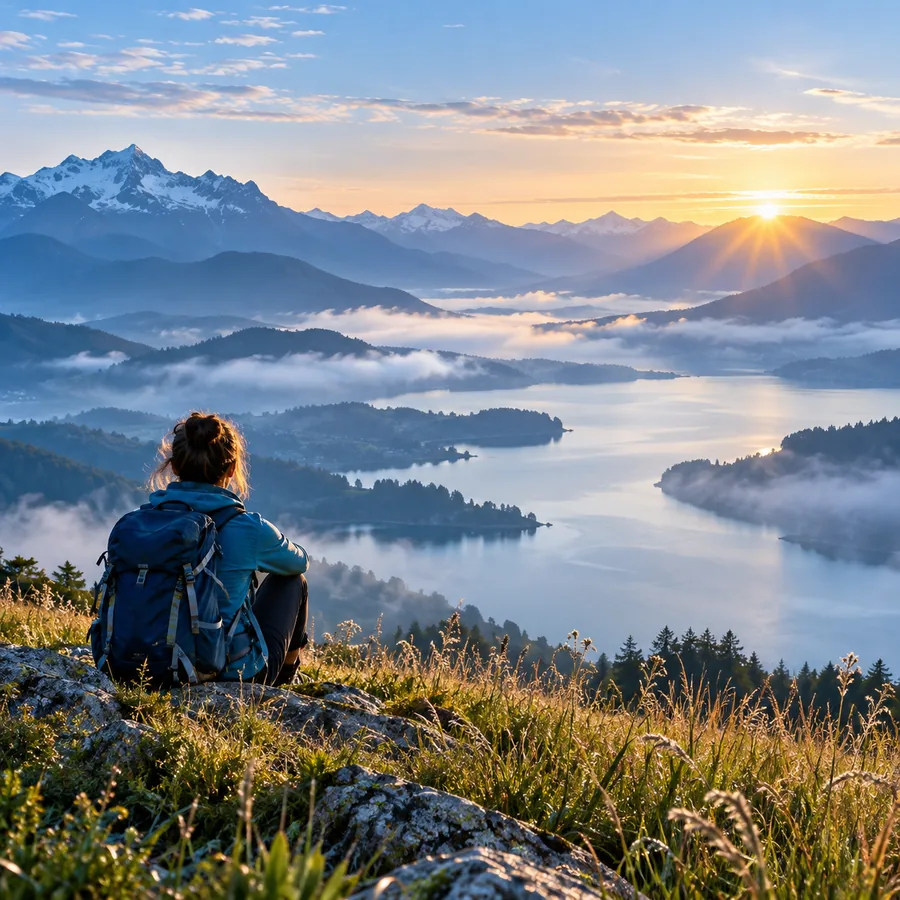
    Input to test: a landscape intended for a banner. View the complete crop at banner size, then inspect foliage and distant features closely. Compare the enlarged file with the source rather than judging either image from a thumbnail.

compliance notes

Keep the source and check your rights

Only process images you have permission to use, and consider whether an image contains private or sensitive information before sending it to any external service. Save the original separately so you can identify changes introduced during enlargement. If accuracy matters—for a product listing, identity image, or documentary record—do not treat generated-looking detail as evidence of what the source contained. Check the destination’s current terms and image-handling information before submitting a file.

Explore image tools
  • Retain an untouched original
  • Inspect the result at its intended size
  • Verify usage rights before publishing

scenario FAQ

Use them to identify details worth checking, not to infer a particular resolution gain or processing method. Without the original file and settings, you cannot verify how much of the appearance came from upscaling. Test your own image and compare matching crops at the same viewing size.

No. Results depend on the source’s resolution, compression, subject, and the size you need. A clean illustration may behave differently from a noisy portrait, so assess a representative crop from your own file.

Check eyes, teeth, hairlines, and the boundary between the subject and background. Compare them with the original rather than rewarding sharpness alone. If a facial feature changes shape, the enlargement may be unsuitable even if it looks polished.

No. Print suitability also depends on the final physical size, viewing distance, source quality, and printer or layout requirements. Inspect at the intended size and make a test print when the output matters.

Upscaling does not grant permission to use someone else’s work. Check the image’s license and obtain any permissions required for your intended use. If it depicts a person or includes sensitive information, consider privacy and consent as well.

Start creating
Start creating